
Common HP Monitor Problems and How to Fix Them
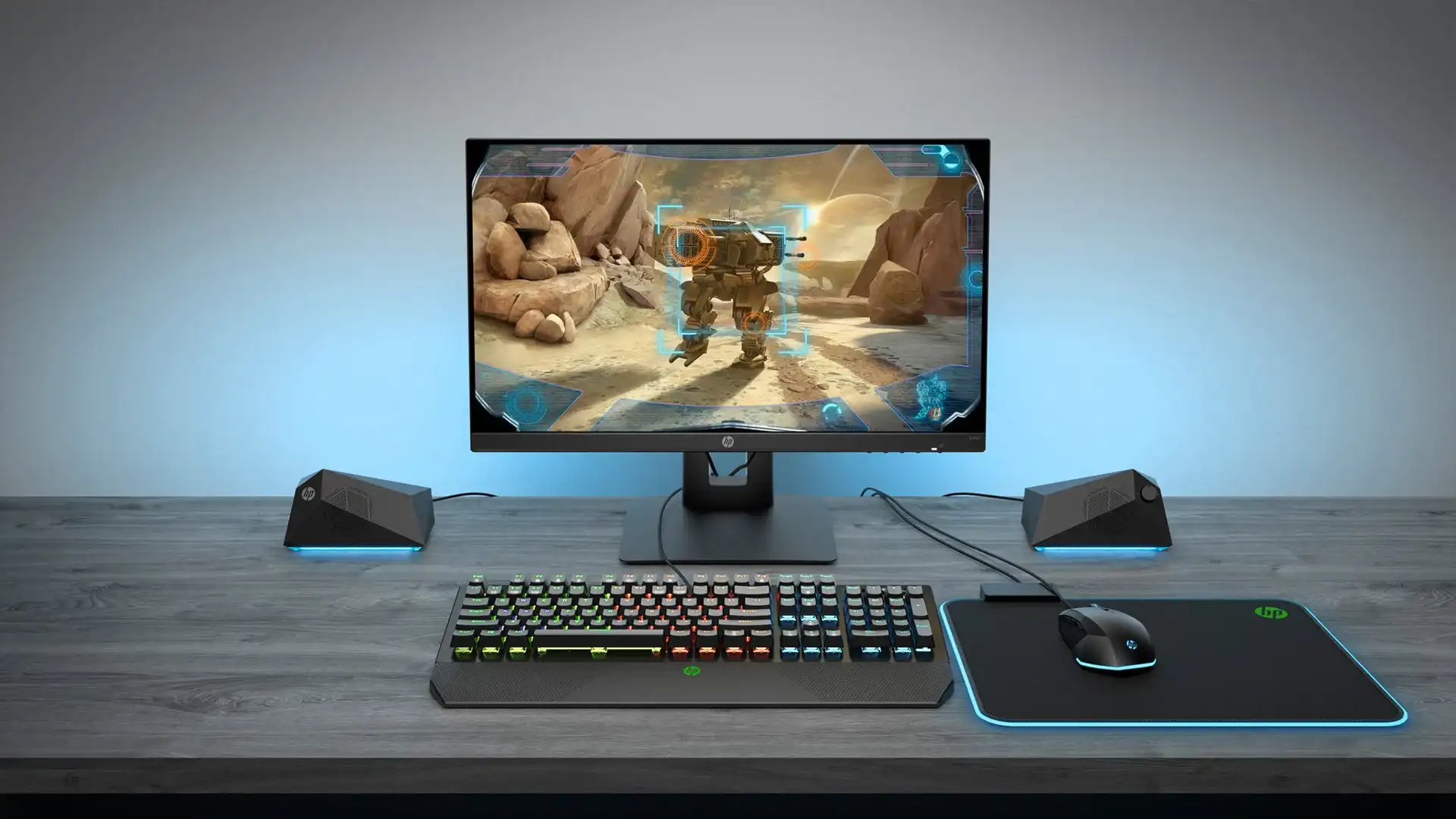
HP monitors are generally reliable, but like all displays, they can encounter issues. Most common problems have straightforward solutions that do not require professional servicing.
HP Monitor No Signal
No signal is one of the most common HP monitor problems. First check that the correct input source is selected using the monitor’s OSD menu (pressing the input button or using the menu). Verify the display cable (HDMI, DisplayPort, USB-C) is firmly connected at both ends. Try a different cable to rule out cable failure. Test with a different port on the GPU. Ensure the GPU is properly seated if using a desktop. If the GPU works but the monitor shows no signal, try connecting to another monitor to isolate whether the issue is the monitor or the GPU.
HP Monitor Flickering
Flickering usually indicates a cable or frequency issue. Try replacing the display cable first as it is the most common cause. Ensure the refresh rate in Windows display settings matches the monitor’s supported refresh rate. Disable FreeSync or G-Sync temporarily to check if adaptive sync is causing the flicker. Update GPU drivers. Check for electrical interference from nearby devices.
HP Monitor Not Detected
If Windows does not detect the HP monitor, try pressing Windows+P to see display options. In Display Settings, click Detect. Try a different display cable and port. Update GPU drivers. Check if the monitor works with a different computer to confirm it is functioning. On laptops, ensure the display cable is firmly in the port as it can become loose over time.
Blurry or Poor Image Quality
Blurriness is often caused by using the wrong resolution. Set the display to its native resolution in Windows Display Settings. If using a scaled resolution on an external monitor, switch to 100% scaling. Ensure the cable supports the resolution and refresh rate you need. Clean the monitor screen gently with a microfibre cloth.
OSD Lockout
If the monitor menu is locked and buttons do not respond, the OSD lockout feature may be enabled. To unlock, typically press and hold the menu button for several seconds. The exact method varies by model, so check the HP monitor manual for your specific model.
Gaming Monitor Issues
For HP gaming monitors with adaptive sync, ensure VRR is enabled in both the monitor OSD and GPU driver settings. Low input lag mode (gaming mode) should be enabled in the OSD for best response time. Screen tearing without adaptive sync enabled is normal and resolved by enabling FreeSync or G-Sync Compatible mode.